Tidy Tabs
Your tabs. Your order.
Your tabs. Your order.
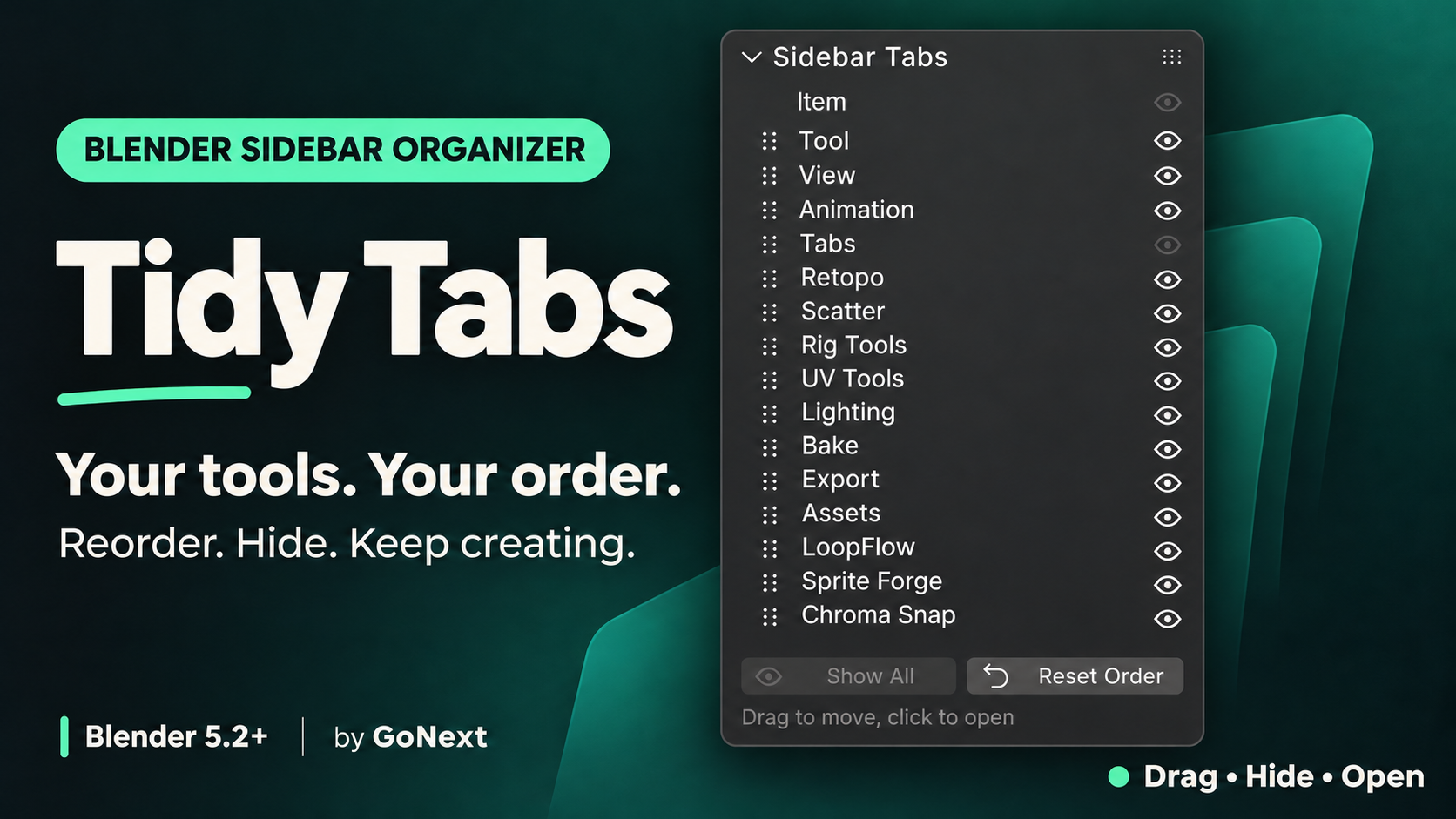
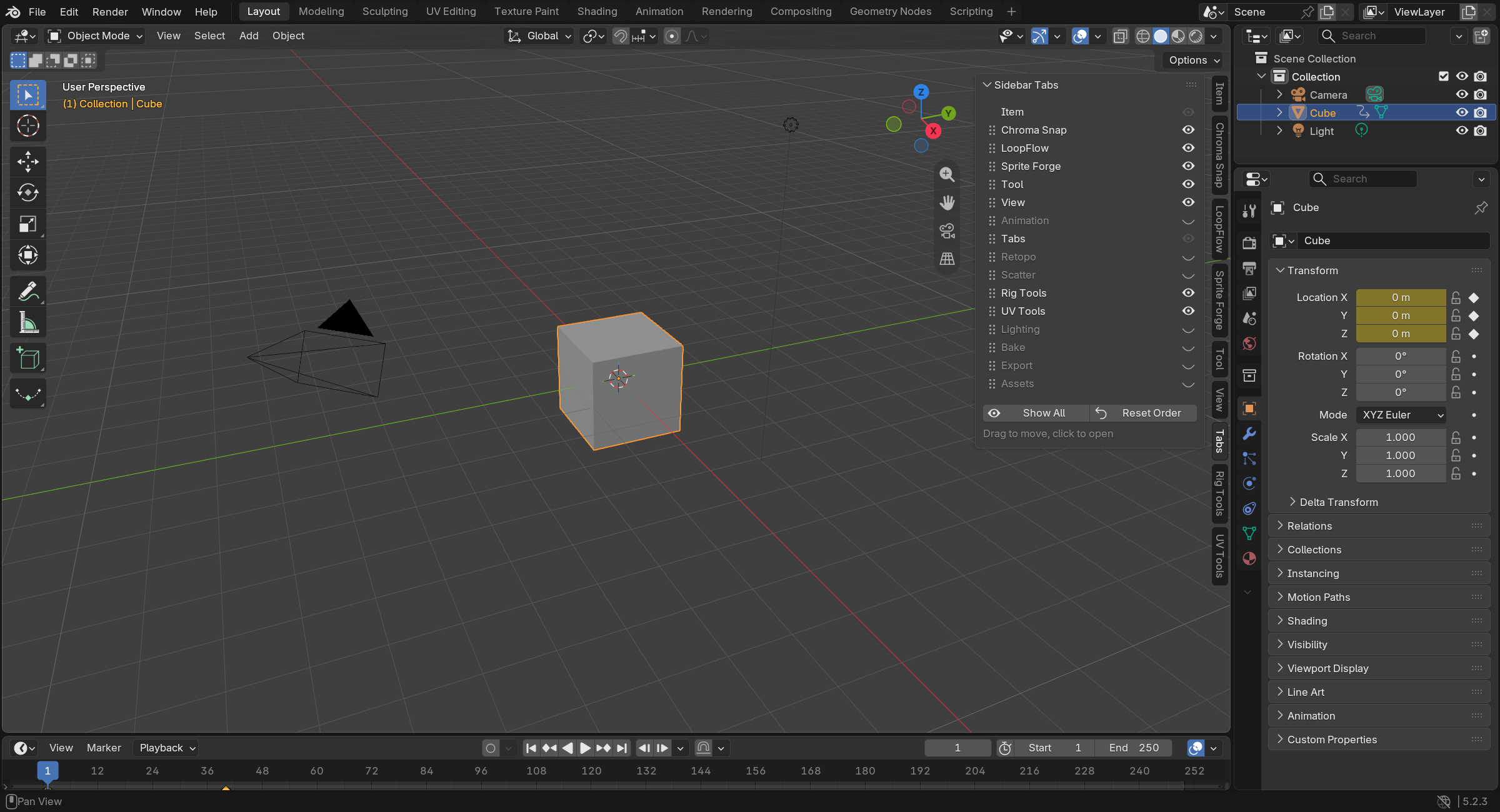
Reorder and hide Blender's sidebar tabs without switching off your add-ons. Open the sidebar with N, choose Tabs, and drag names or grip dots into the order that works for you. The real tabs move as you drag. Click a name to open it, or use its eye toggle to hide the clutter.
Each editor keeps its own order and hidden tabs. Your choices save automatically and return when you restart Blender. New add-on tabs appear at the bottom, and disabled add-ons remember their place for when you bring them back.
Made for Blender 5.2 and newer. Built-in C tabs, including the 3D Viewport's Item tab, stay in front and cannot be moved or hidden. The tab containing the management list cannot be hidden either.
The first three gallery images are AI-generated promotional compositions based on product screenshots. The remaining images are in-app screenshots. Demo tab names illustrate organization and do not indicate bundled tools.
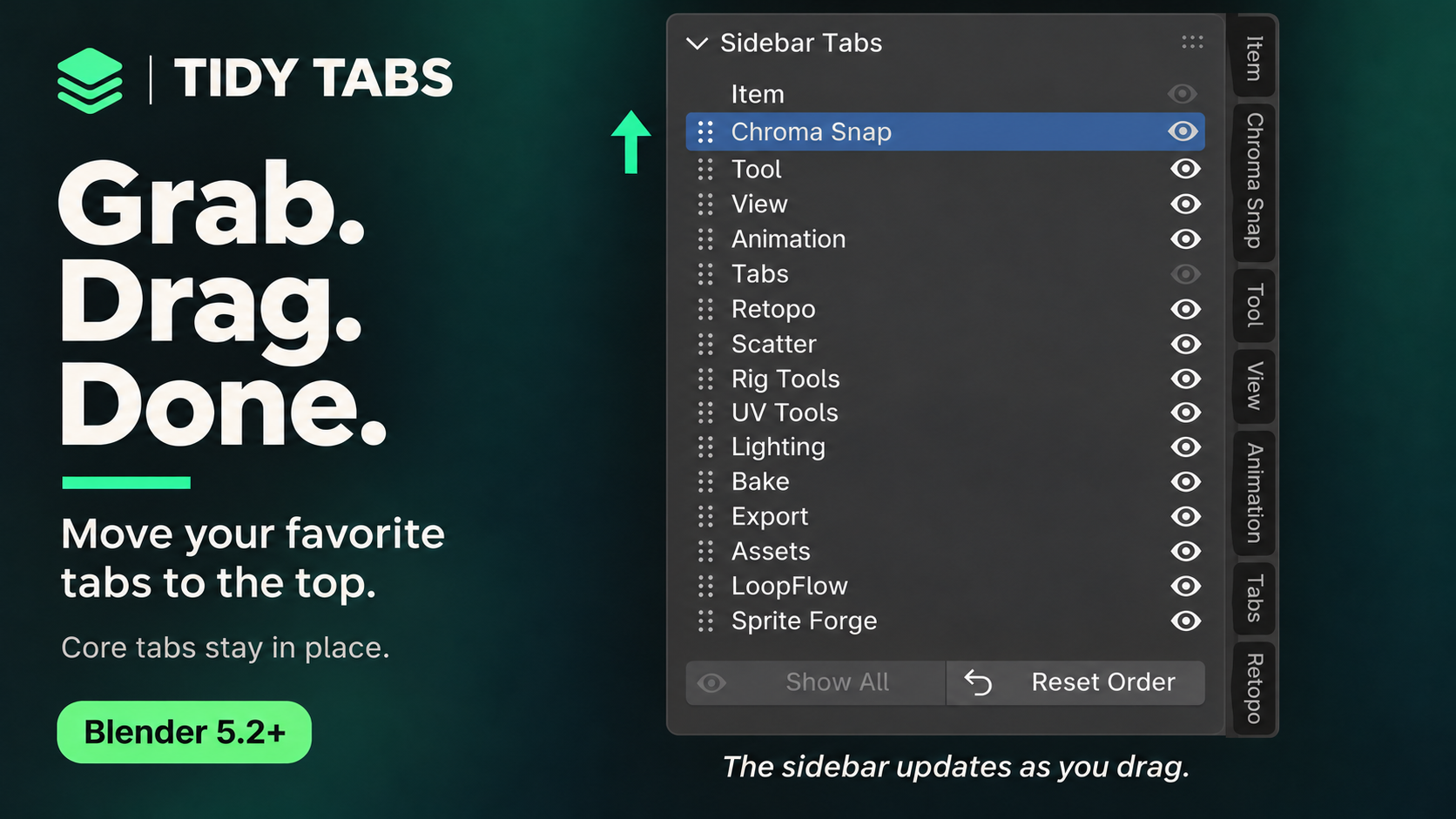
Put your favorites first.
Drag a tab's name or grip dots up or down and watch the sidebar follow live. Press Esc or right-click during a drag to put everything back. Click a name to jump straight to that tab.
Keep only what you need.
Click an eye to hide or show a tab without disabling its add-on. Ctrl+click an eye to show only that tab, then Ctrl+click again to bring them all back. Show All restores the editor's hidden tabs.
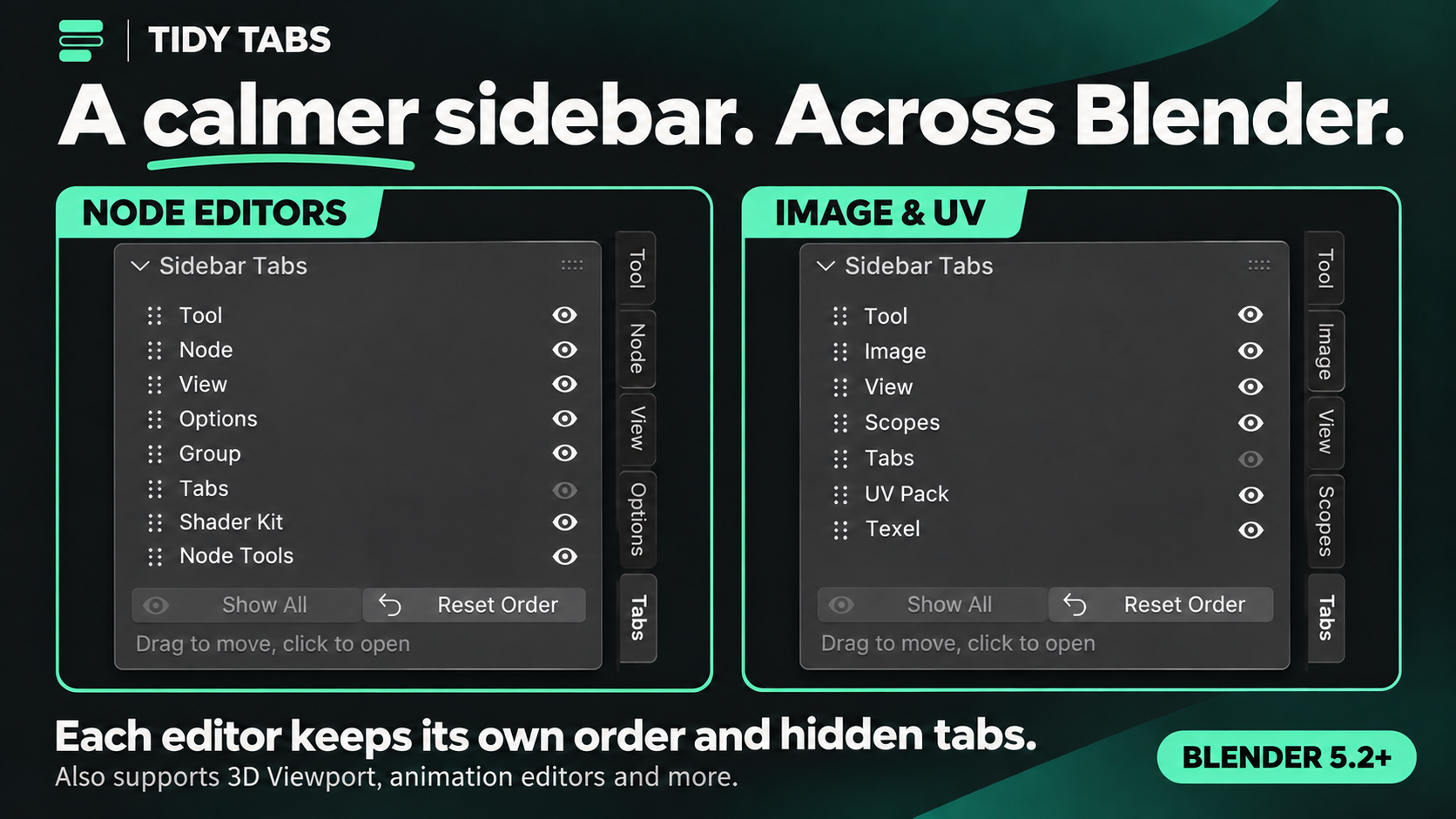
A tidy sidebar in every workspace.
Organize the 3D Viewport, node editors, Image & UV Editor, Video Sequencer, Movie Clip Editor, Text Editor, Graph Editor & Drivers, Dope Sheet & Timeline, Nonlinear Animation and Spreadsheet. Each editor has its own settings; built-in C tabs remain fixed.
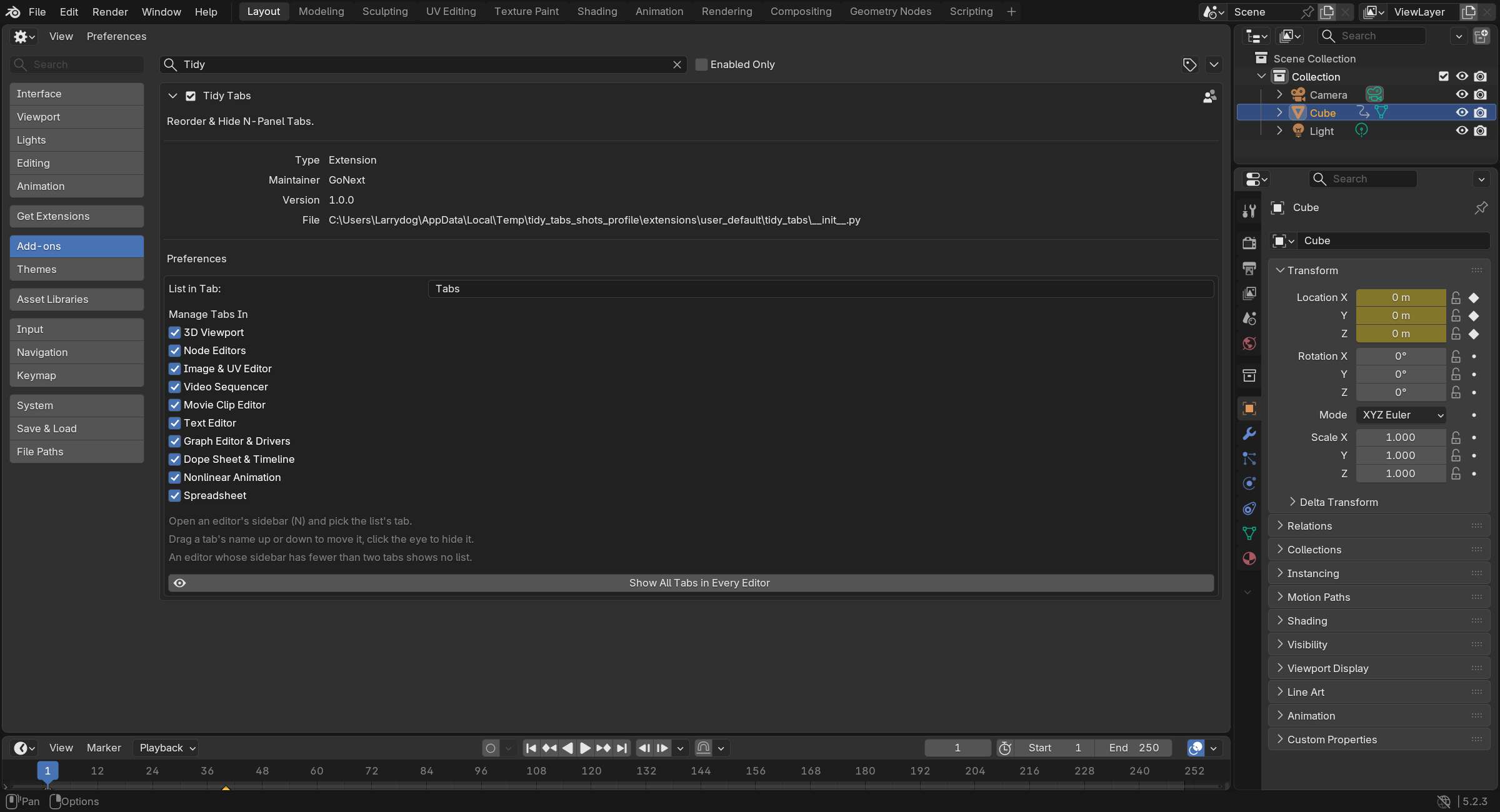
Make room. Make it yours.
Move the list into an existing tab, such as View, with List in Tab. Choose which editors Tidy Tabs manages in Preferences. Editors you switch off return to Blender's own order with nothing hidden.
Pick up where you left off.
Your order and hidden tabs persist between sessions. New add-ons are picked up automatically. Reset Order restores Blender's order for an editor, and turning Tidy Tabs off restores the original panel behavior.
Tech specs
- Compatibility
- Blender 5.2 or newer
- Tested on
- Windows 11, Blender 5.2.3; OpenGL and Vulkan
- Installation
- Preferences > Get Extensions > Install from Disk; select the ZIP
- Getting started
- Open an editor sidebar with N, then choose Tabs
- Storage
- Tab order and hidden tabs save automatically
- Built-in tabs
- C-defined tabs cannot be reordered or hidden
- Other tab managers
- Use only one sidebar tab manager at a time
What's new. Version 1.0.0.
Version 1.0.0Nov 3, 2026
Initial release.
Read the patch notes ›